Having the whole environment in the cloud can simplify setup and the hardware you need to experiment and learn.
There are many ways to utilize AI/LLMs for different kinds of tasks, and accordingly a variety of types of AI models.
Pre-Requisite Setup with Google Colab
Working with models using free (for now) access to an NVIDIA T4
- create a free google account
- https://colab.research.google.com/
Next to "Connect" (arrow down) -> Change runtime type (to T4) - more info on the NVIDIA T4 GPU: https://www.nvidia.com/en-us/data-center/tesla-t4/
Resources offered free of charge are not guaranteed. At your current usage level, this runtime may last up to 5 hours.
This is an ephemeral environment - it starts with a clean slate and after "disconnect and delete" all data, packages, and code will be deleted
Connect and Code Cells
Click on Connect T4
the Resources tab on the right will show you the available and used system RAM (12.7GB), GPU RAM (15GB), and Disk space (112GB)
There is an existing "code cell" where you can paste the following trivial "code" and press the play (execute) button to see the output
seconds_in_a_day = 24 * 60 * 60
seconds_in_a_day
86400
Cell output is displayed below the commands/code
!nvidia-smi
the ! runs a shell command - in this case using a CLI utility to detect the NVIDIA GPU
The UI makes it easy to add more with "+ Code", and every code cell shares the same state (dependencies, credentials, etc.)
Here is an optional initial diagnostic to inspect the base environment:
import torch
import google.protobuf

print("torch:", torch.__version__)
print("cuda:", torch.version.cuda)
print("protobuf:", google.protobuf.__version__)
print("gpu:", torch.cuda.get_device_name(0))
torch: 2.10.0+cu128
cuda: 12.8
protobuf: 5.29.6
gpu: Tesla T4
HuggingFace API Token as a Colab Secret
Create a free HuggingFace account on https://huggingface.co
(Profile image) -> Settings -> Access Tokens (on the left) -> "Create new token" button
https://huggingface.co/settings/tokens
Token type: "Write"
Save the secret API token someplace safe.
Then back in Colab https://colab.research.google.com/
- On the left press the "Key" icon on the side panel to the left, and "Add new secret"
- Name: HF_TOKEN
- Value: (paste your huggingface api token here)
Installing Dependencies
It is simpler to have the first cell install all the dependencies needed for the rest of the notebook.
!pip install -q --upgrade transformers==4.56.2 diffusers==0.36.0 accelerate bitsandbytes sentencepiece
I had to pin to specific dependencies to make both image generation examples work =|
- diffusers: provides the image-generation pipeline and FLUX classes
- accelerate: handles device placement, device_map="auto", CPU/GPU dispatch
- bitsandbytes: provides quantization so the T5 encoder and FLUX transformer have a chance of fitting on the T4
- sentencepiece: for T5-family tokenization aka "prompt text into tokens"
do not upgrade the core environmenet dependencies like: torch, cuda, protobuf, numpy, requests, fsspec
Optional Sanity Check
If you really want to see the versions of everything you can create a cell with this code:
import torch, transformers, accelerate, bitsandbytes, diffusers
import google.protobuf

print("transformers:", transformers.__version__)
print("accelerate:", accelerate.__version__)
print("bitsandbytes:", bitsandbytes.__version__)
print("diffusers:", diffusers.__version__)
print("protobuf:", google.protobuf.__version__)

if torch.cuda.is_available():
    print("gpu:", torch.cuda.get_device_name(0))
    print("vram total GB:", round(torch.cuda.get_device_properties(0).total_memory / 1024**3, 2))
transformers: 4.56.2
accelerate: 1.13.0
bitsandbytes: 0.49.2
diffusers: 0.36.0
protobuf: 5.29.6
gpu: Tesla T4
vram total GB: 14.56
Login
The second "code cell" is a good place to get authentication out of the way for the rest of the notebook:
from google.colab import userdata
from huggingface_hub import login

hf_token = userdata.get('HF_TOKEN')
login(hf_token, add_to_git_credential=True)
Creating an Image
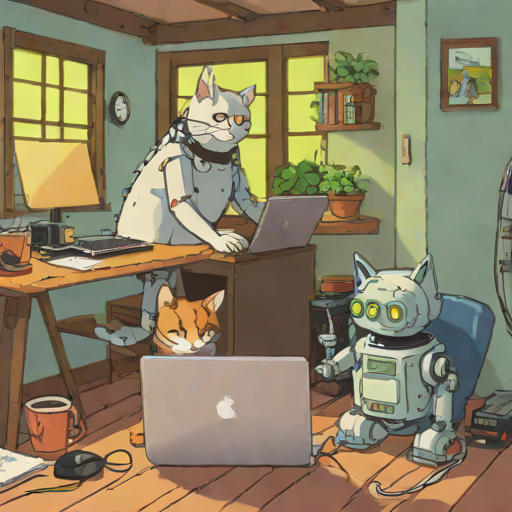
Running the following code will produce a lot of progress bars as the model is downloaded and about 8GB of GPU RAM is utilized to generate an okay smaller cartoon image:
from IPython.display import display
from diffusers import AutoPipelineForText2Image
import torch

pipe = AutoPipelineForText2Image.from_pretrained("stabilityai/sdxl-turbo", torch_dtype=torch.float16, variant="fp16")
pipe.to("cuda")
prompt = "A ghibli-style scene of a cat and a robot pair-programming on a laptop in a tiny attic office"
image = pipe(prompt=prompt, num_inference_steps=4, guidance_scale=0.0).images[0]
display(image)
be prepared to wait as it can take 5 minutes, and the 512x512 limitation is a limitation of "turbo"
Complexity and Quantization
The power of the notebook approach is to be able to experiment quickly and see results.
Some open weight models still require accepting some extra legal terms =(
Go to https://huggingface.co/black-forest-labs/FLUX.1-schnell
"You need to agree to share your contact information to access this model"
Once you click, then the UI updates with "Gated model: You have been granted access to this model"
Consider this a new experiment that needs a lot of memory:
- "restart session"
- Re-run the Login cell
- Re-run the Dependencies cell
Below we will add a new series of new cells in your notebook.
Imports
model_id = "black-forest-labs/FLUX.1-schnell"

import os
os.environ["PYTORCH_CUDA_ALLOC_CONF"] = "expandable_segments:True"

import torch
from IPython.display import display

from transformers import T5EncoderModel
from transformers import BitsAndBytesConfig as TransformersBitsAndBytesConfig

from diffusers import FluxPipeline, FluxTransformer2DModel
from diffusers import BitsAndBytesConfig as DiffusersBitsAndBytesConfig

torch.cuda.empty_cache()
torch.cuda.reset_peak_memory_stats()
Quantizing - Text Encoder 2
First we are "quantizing" or reducing the size for an acceptable degradation in quality.
https://developer.nvidia.com/blog/model-quantization-concepts-methods-and-why-it-matters/
This step can take 5 minutes (mostly waiting for downloads from HuggingFace to Google Colab).
T5-XXL is the large text encoder (~9.5GB) that understands complex prompts. Quantizing it to 8-bit cuts memory roughly in half so it fits on the T4.
    # T5 text encoder 8-bit — supports CPU offloading: use TRANSFORMERS BitsAndBytesConfig
text_encoder_2 = T5EncoderModel.from_pretrained(
    model_id,
    subfolder="text_encoder_2",
    quantization_config=TransformersBitsAndBytesConfig(
        load_in_8bit=True,
        llm_int8_enable_fp32_cpu_offload=True,
    ),
    torch_dtype=torch.float16,
    device_map="auto",
    low_cpu_mem_usage=True,
)

print("T5 loaded")
print("device map:", text_encoder_2.hf_device_map)
print("allocated GB:", round(torch.cuda.memory_allocated() / 1024**3, 2))
print("reserved GB:", round(torch.cuda.memory_reserved() / 1024**3, 2))
print("peak GB:", round(torch.cuda.max_memory_allocated() / 1024**3, 2))
T5 loaded
device map: {'': 0}
allocated GB: 7.37
reserved GB: 7.8
peak GB: 7.45
"device map {'': 0} means all layers loaded onto GPU (device 0)
Quantizing - Transformer Model
This step can take 10 minutes:
- downloading 23GB of weights
- quantizing it down to 4bit (~6GB = a lot less memory)
In HuggingFace, FluxTransformer2DModel is the python class for the FLUX.1 family
- https://huggingface.co/docs/diffusers/api/models/flux_transformer#fluxtransformer2dmodel
- https://huggingface.co/black-forest-labs/FLUX.1-schnell
- https://bfl.ai/blog/24-08-01-bfl
transformer = FluxTransformer2DModel.from_pretrained(
    model_id,
    subfolder="transformer",
    quantization_config=DiffusersBitsAndBytesConfig(
        load_in_4bit=True,
        bnb_4bit_quant_type="nf4",
        bnb_4bit_compute_dtype=torch.float16,
    ),
    torch_dtype=torch.float16,
)

print("Transformer loaded")
print("device map:", transformer.hf_device_map)
print("allocated GB:", round(torch.cuda.memory_allocated() / 1024**3, 2))
print("reserved GB:", round(torch.cuda.memory_reserved() / 1024**3, 2))
print("peak GB:", round(torch.cuda.max_memory_allocated() / 1024**3, 2))
Transformer loaded
allocated GB: 13.61
reserved GB: 13.68
peak GB: 13.7
Like Limbo, barely fitting under the limit of 15GB, wait actually 14.5GB!
Pipeline
Now creating the pipeline, and explicitly passing our previous step quantized text encoder...
- CLIP text encoder (~250MB, visual-semantic alignment)
- text_encoder_2 (quantized down to ~7GB)
- FLUX transformer (23.8G reduced to ~6GB, the actual image generator)
- VAE (~170MB, decodes the result into a visible image)
- tokenizers and scheduler config
This step is relatively quick as it is just assembling the pieces and one last memory check...
pipe = FluxPipeline.from_pretrained(
    model_id,
    text_encoder_2=text_encoder_2,
    transformer=transformer,
    torch_dtype=torch.float16,
    device_map="balanced",
)

pipe.vae.enable_slicing()
pipe.vae.enable_tiling()

print("Pipeline ready")
print("allocated GB:", round(torch.cuda.memory_allocated() / 1024**3, 2))
print("reserved GB:", round(torch.cuda.memory_reserved() / 1024**3, 2))
print("peak GB:", round(torch.cuda.max_memory_allocated() / 1024**3, 2))
- slicing: for a batch of images, decodes them one at a time instead of all at once
- tiling: splits the image into overlapping tiles and decodes each tile separately instead of the full image at once
Pipeline ready
allocated GB: 13.99
reserved GB: 14.02
peak GB: 13.99
Image Generation - Success
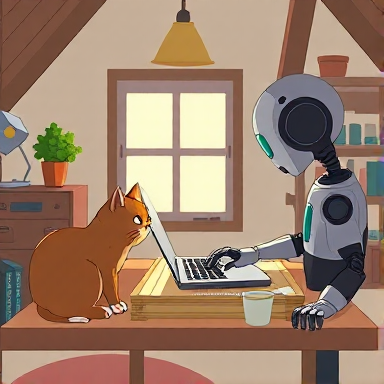
All the previous cells led up to this generation of a higher quality image in seconds.
prompt = "A ghibli-style scene of a cat and a robot pair-programming on a laptop in a tiny attic office"

with torch.inference_mode():
    image = pipe(
        prompt=prompt,
        num_inference_steps=4,
        guidance_scale=0.0,
        height=384,
        width=384,
        max_sequence_length=128,
    ).images[0]

display(image)

print("allocated GB:", round(torch.cuda.memory_allocated() / 1024**3, 2))
print("reserved GB:", round(torch.cuda.memory_reserved() / 1024**3, 2))
print("peak GB:", round(torch.cuda.max_memory_allocated() / 1024**3, 2))
peak GB: 14.34
Moar Image - Fail
Attempting a larger, 512x512 image takes more memory...
prompt = "A cozy watercolor-style scene of a cartoon cat and a cartoon robot pair-programming on a laptop in a tiny attic office"

torch.cuda.reset_peak_memory_stats()

with torch.inference_mode():
    image = pipe(
        prompt=prompt,
        num_inference_steps=4,
        guidance_scale=0.0,
        height=512,
        width=512,
        max_sequence_length=128,
    ).images[0]

display(image)
OutOfMemoryError: CUDA out of memory. Tried to allocate 128.00 MiB. GPU 0 has a total capacity of 14.56 GiB of which 111.81 MiB is free. Including non-PyTorch memory, this process has 14.45 GiB memory in use. Of the allocated memory 14.25 GiB is allocated by PyTorch, and 60.81 MiB is reserved by PyTorch but unallocated.
Manual Cleanup
Usually you'd "restart session", and hopefully the model weights are cached on disk (~/.cache/huggingface/).
If you really need something you can sometimes get rid of the pipeline and regenerate it:
import gc

del pipe                # delete the pipeline object
# del text_encoder_2
# del transformer

gc.collect()            # Python garbage collection
torch.cuda.empty_cache()  # release GPU memory back to CUDA
Re-run your Pipeline cell:
Pipeline ready
allocated GB: 14.25
reserved GB: 14.31
peak GB: 14.35
You will often find the memory is not really released - you really do have to restart session
Addendum - Explaining Files
Downloading (incomplete total...): 30% 2.85G/9.52G [00:48<01:29, 74.5MB/s]
FLUX.1-schnell is a "distilled model" - created from a larger model https://en.wikipedia.org/wiki/Knowledge_distillation
Fetching 2 files (9.52GB download): The T5-XXL model that turns your text prompt into "dense vector representation" that guides image generation.
Full precision would be ~18GB; but instead using the smaller fp16 variant, which then gets further compressed to 8-bit by BitsAndBytesConfig as it loads.
config.json (782 bytes): The T5-XXL architecture definition — number of layers, hidden dimensions, attention heads. Tells PyTorch what shape to build before loading weights into it.
model.safetensors.index.json (19.9k): A map of "layer name to which shard file it lives in." The T5 weights are split across multiple .safetensors files; this index tells the loader which files to fetch and where each tensor goes.
model_index.json (536 bytes): The pipeline manifest — lists every component (scheduler, tokenizer, tokenizer_2, text_encoder, text_encoder_2, transformer, vae) and which class/subfolder each one uses. This is how diffusers knows what to assemble.
Downloading 23.8GB The FLUX transformer itself — the 12 billion parameter diffusion transformer that actually generates the image.
In the "text_encoder" area is CLIP , https://openai.com/index/clip/ , which was trained on millions of image-caption pairs, so its mapping of text and images into the same mathematical space can be used to help the transformer to go from "prompt text" to "generally what the image should look like".
Addendum - Memory Strategies
With limited memory space you may need more tricks than just quantization...
enable_model_cpu_offload() is dynamic
During inference:
- move T5 to GPU: encode text, then back to the CPU
- move CLIP to GPU: encode text, then back to the CPU
- move transformer to GPU: denoise, then back to the CPU
- move VAE to GPU: decode
https://huggingface.co/blog/sd3#dropping-the-t5-text-encoder-during-inference
For device_map="balanced", static placement, distributes evenly across devices. Layers stay where they're placed.
GPU (14.56 GB)                    CPU
┌─────────────────────┐          ┌──────────────────┐
│ T5 encoder (8-bit)  │          │                  │
│ all blocks 0-23     │          │                  │
│ ~7.4 GB             │          │                  │
├─────────────────────┤          │                  │
│ FLUX transformer    │          │                  │
│ (4-bit NF4, ~6 GB)  │          │                  │
├─────────────────────┤          ├──────────────────┤
│ CLIP + VAE          │          │ overflow layers  │
│ ~0.4 GB             │          │ from "balanced"  │
└─────────────────────┘          └──────────────────┘
      ~14 GB                        minimal
For device_map="auto" it is static placement at load time, fills GPU first, spills overflow to CPU. Layers stay where they're placed.
Troubleshooting
When things go wrong the cell response color will be red and the result will contain some error message info...
Python Dependency Hell
There are least four packages (transformers, diffusers, bitsandbytes, accelerate) that are tightly coupled but release independently.
If you get a DryRunError() error then you may have stale dependencies and should try "Restart the Runtime" and try re-installing all the dependencies
Out of Memory
When you OOM, you can't just fix the code and re-run. You have to restart the runtime.
GPU 0 has a total capacity of 14.56 GiB of which 9.81 MiB is free
It might need re-download everything =(
After the restart, remember to re-run each cell that you want to load into the global shared state.
(green checkmark next to the cell number)
If you're lucky then maybe some of the models got cached on disk; if you have a cell with an experiment that you don't need you can just ignore it.
Authentication
403 Authentication
Ensure you have executed your "HuggingFace credentials" cell.
Also, you may need to consent to extra terms in HuggingFace to download some specific models.